-
Home
-
Help
- How do I issue an Employee Card?
How do I issue an Employee Card?
Only Admins can issue Employee Cards. Follow these steps:
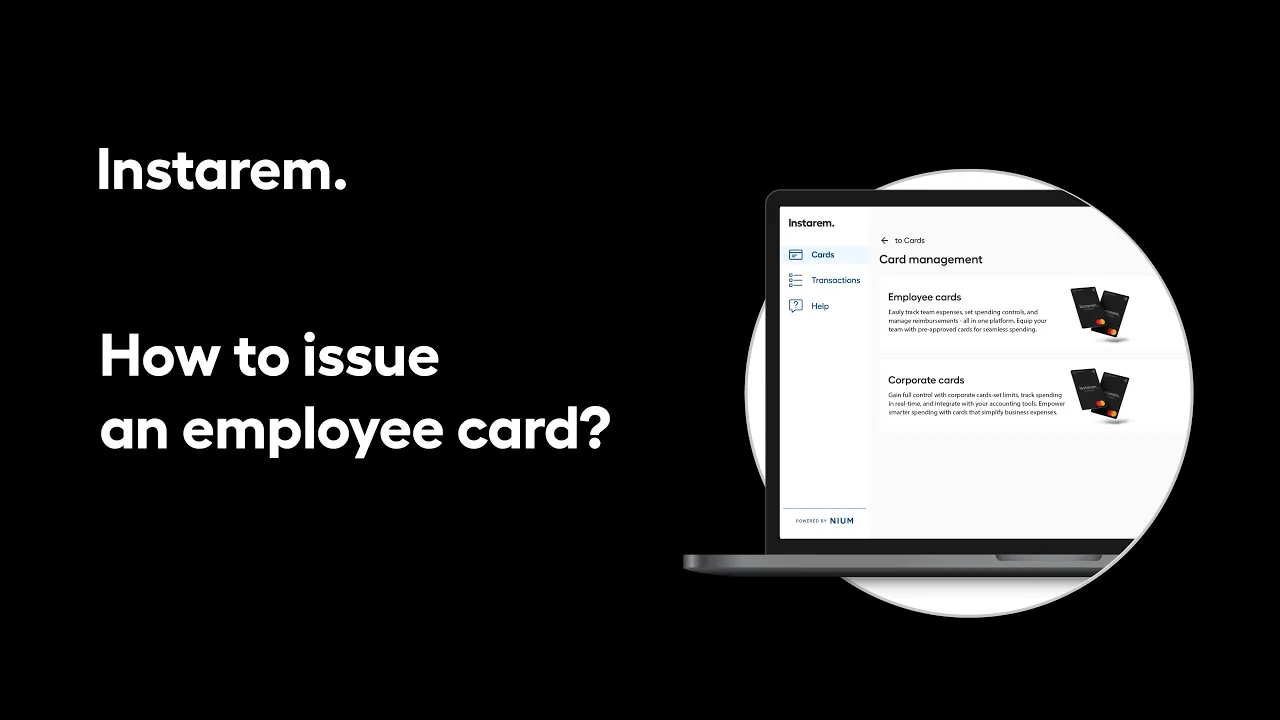
- Go to Dashboard, click Cards, then select Card Management, and click “Issue Card.”
- Select Employee Card and choose an employee from the onboarded list (One card per employee).
- Review and upload employee details (if needed).
- Customise settings (optional):
a. Channel restrictions: Control overseas, ATM, in-store, online, or magstripe transactions.
b. MCC restrictions: Block specific merchant categories.
c. Card limits: Set spending caps per transaction, daily, or monthly.
- Click “Issue Card.” The card will be issued within an hour, followed by a confirmation email sent to the Admin and employee.
Watch this video for a step-by-step walkthrough
Didn’t find what you were looking for?
Have a Personal Instarem account?
- Log in to your account on the Instarem app or web.
- Go to your Profile section.
- Tap on Help.
- Search for the relevant topic.
- Raise a ticket or chat with us if you didn’t find what you were looking for.
Have a Business Instarem account?
- Log into your account on the Instarem business portal.
- Tap on Help.
- Search for the relevant topic.
-
You can raise a ticket by:
-
Clicking Submit a request at the top-right corner of the Help Centre page, or
-
Clicking Raise a ticket after selecting a topic or FAQ.
- We’ll get back to you once your request is submitted.